
Customer reviews play a vital role in shaping a brand’s credibility and online reputation. Facebook, being one of the most popular social platforms, is a key source of authentic customer feedback that businesses can showcase to build trust and attract new customers.
The Omnireview Tool simplifies the process of collecting, managing, and displaying your Facebook Reviews in one centralized dashboard. Instead of manually copying or tracking feedback, Omnireview allows you to automatically fetch all your Facebook Reviews with just a few clicks.

In this guide, you’ll learn how to seamlessly fetch reviews from your Facebook Business Page using the Omnireview Chrome Extension, view them in your dashboard, and efficiently manage them for insights or website display.
Steps
1.Create an account on Omnireview site and obtain a Token. Kindly follow to this document to know how to create an account on Omniereview and setup the extension.
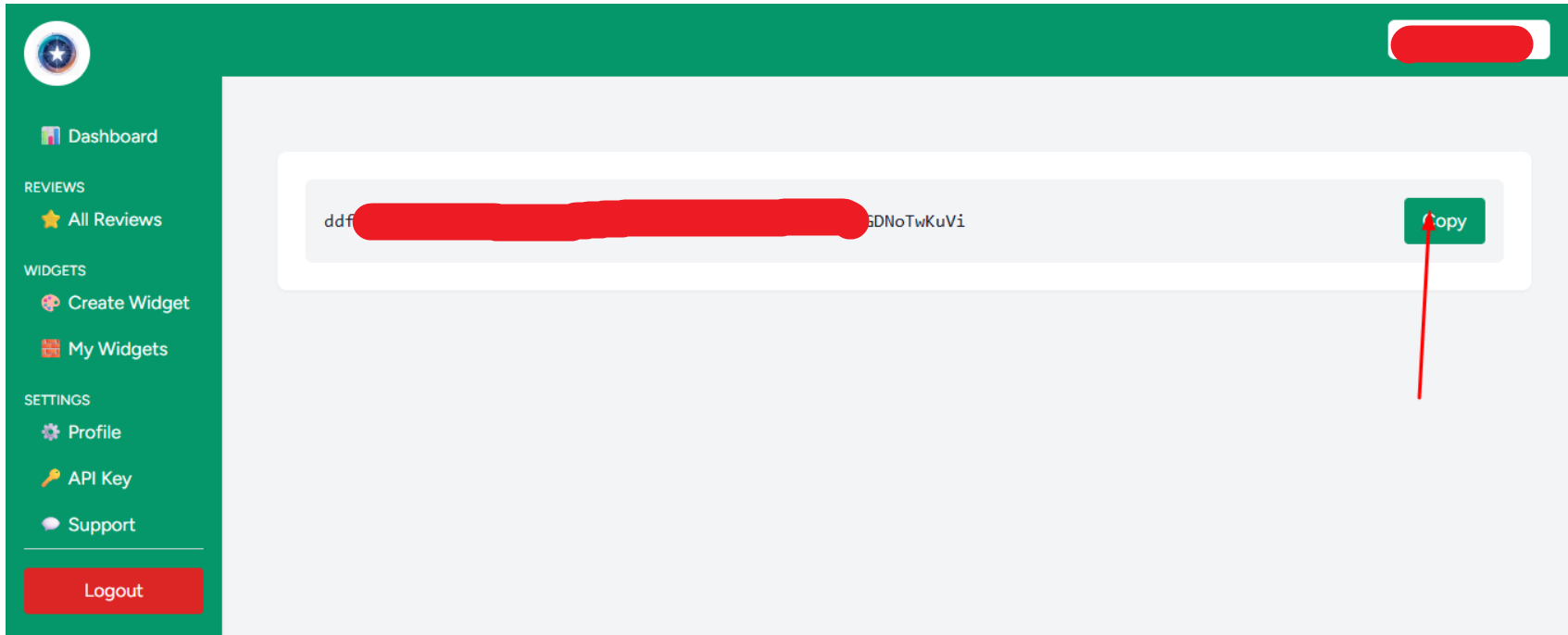
2. Copy to that token and Click on the extension which you installed on your browser. Go to the Facebook Profile , Click on the Reviews section from where you have to collect the reviews and click on “Start Collecting reviews”.
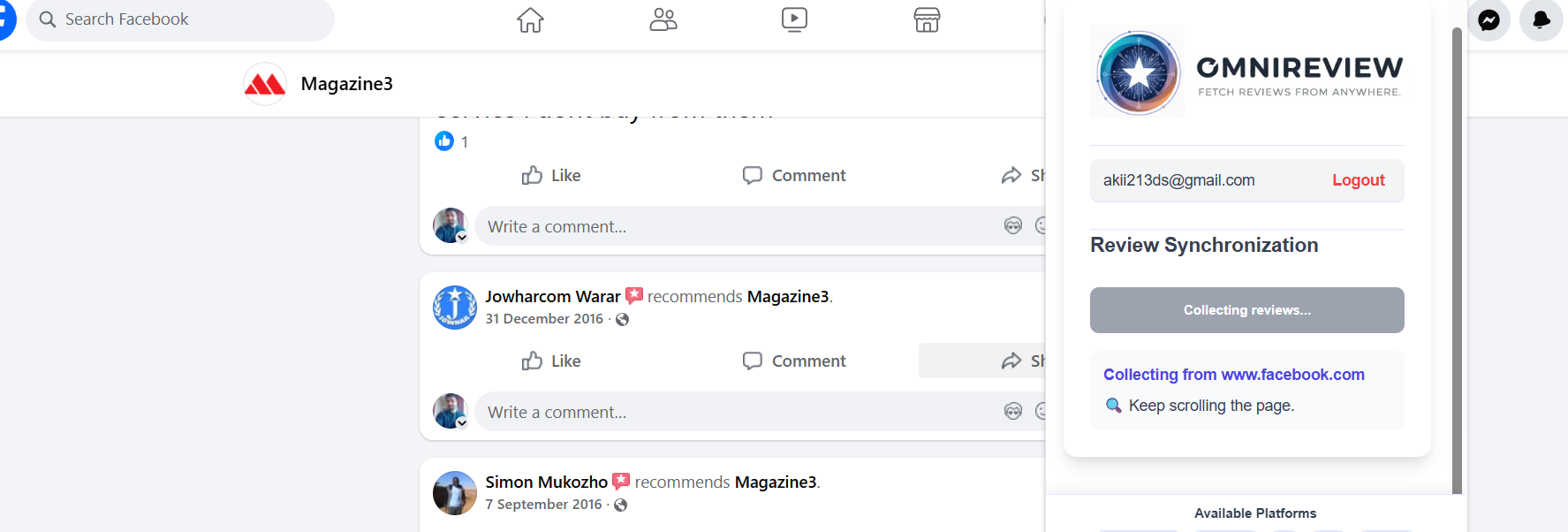
3. Click on save reviews on server and go back to your omnireview dashboard.
4. On the dashboard, click on “All Reviews” to view the collection of reviews gathered from Google Reviews using the Omnireview tool.
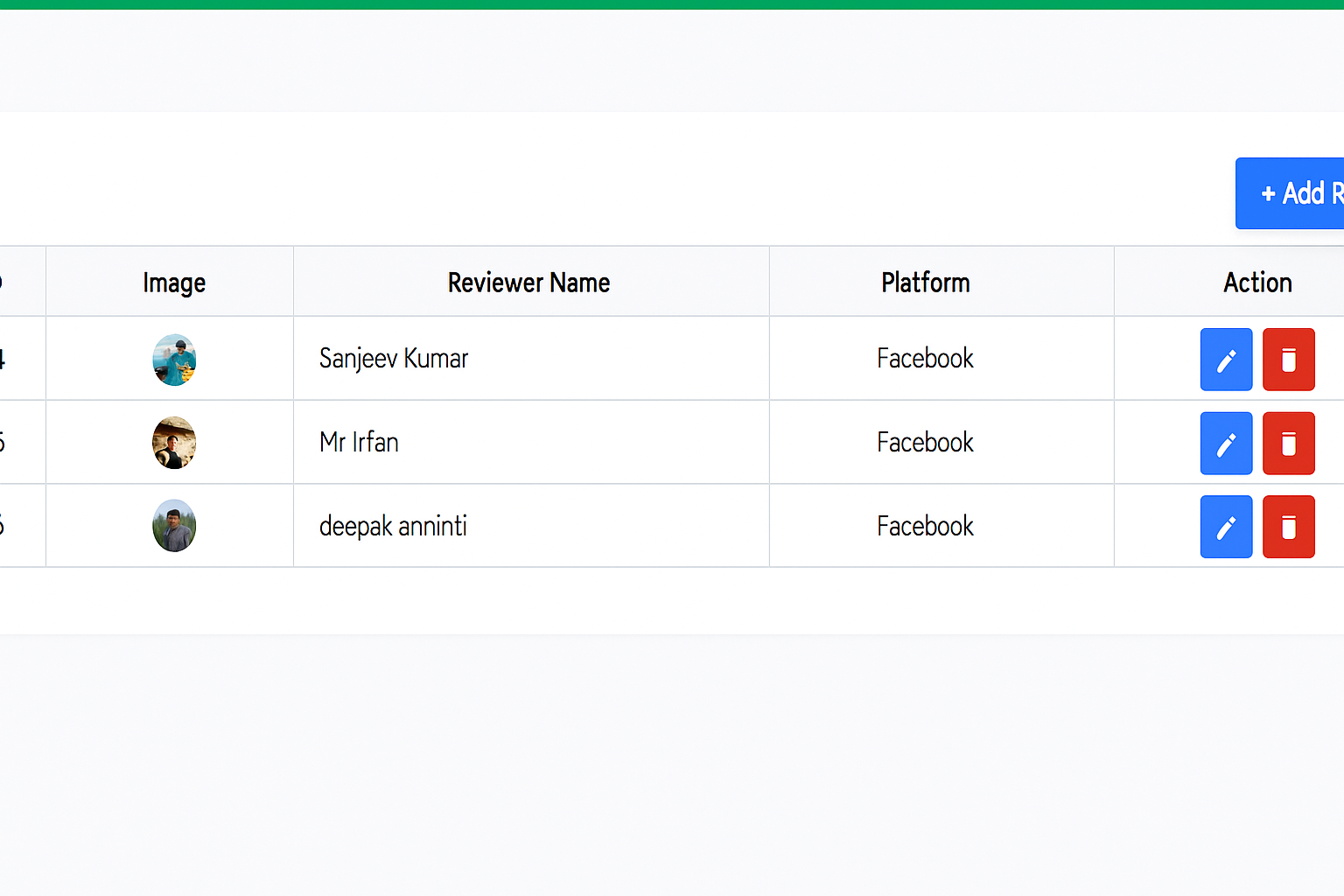
Create widgets to display reviews on your site anywhere
1. Simply go to your OmniReview account and click on the ‘Create Widget’ option.
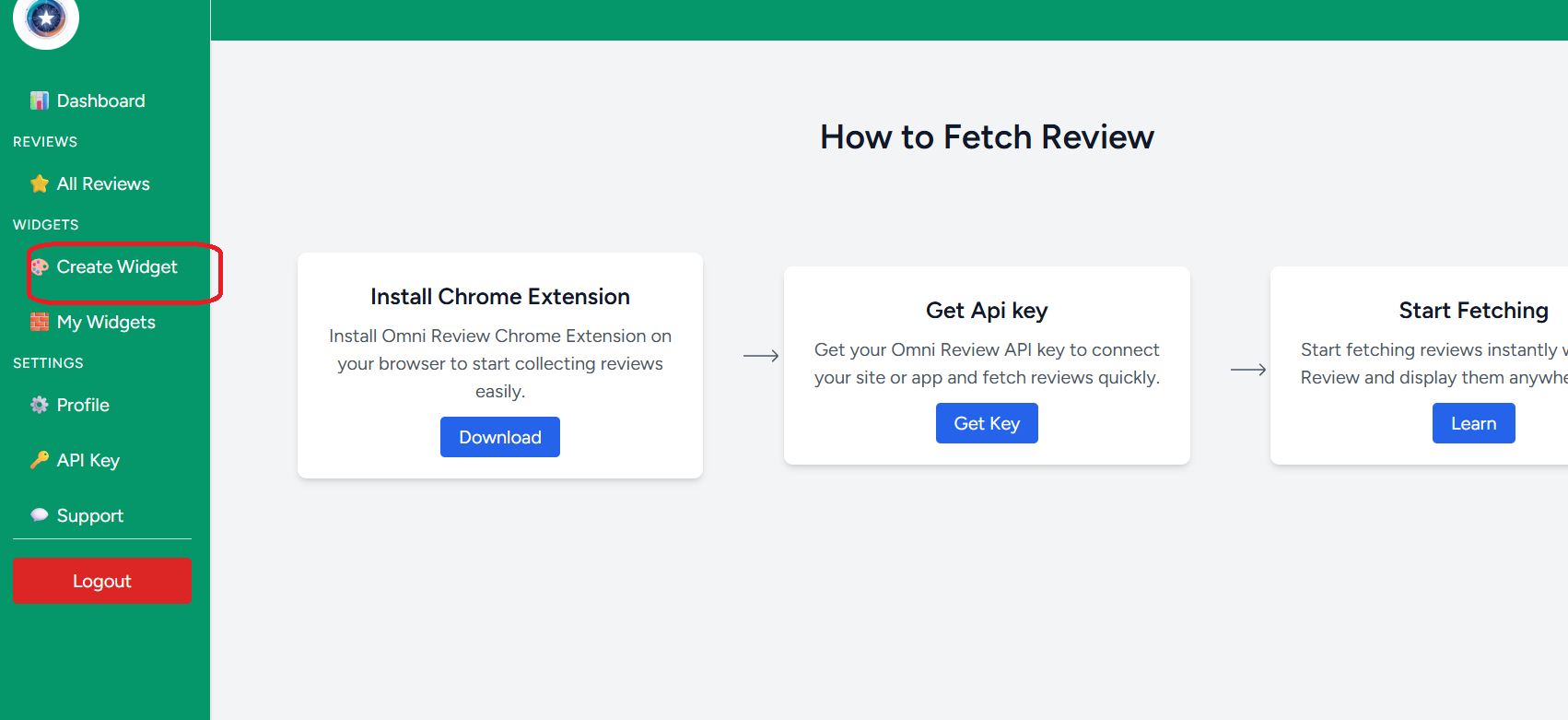
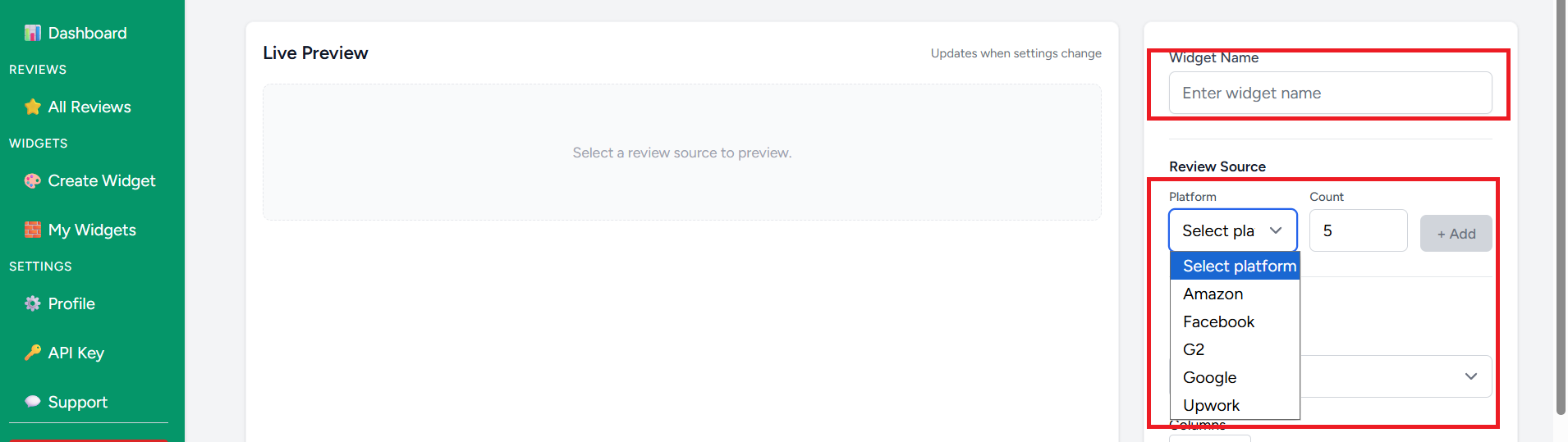
2. On this page, you will see options in the sidebar. Enter the name you want to use and select the review platform.
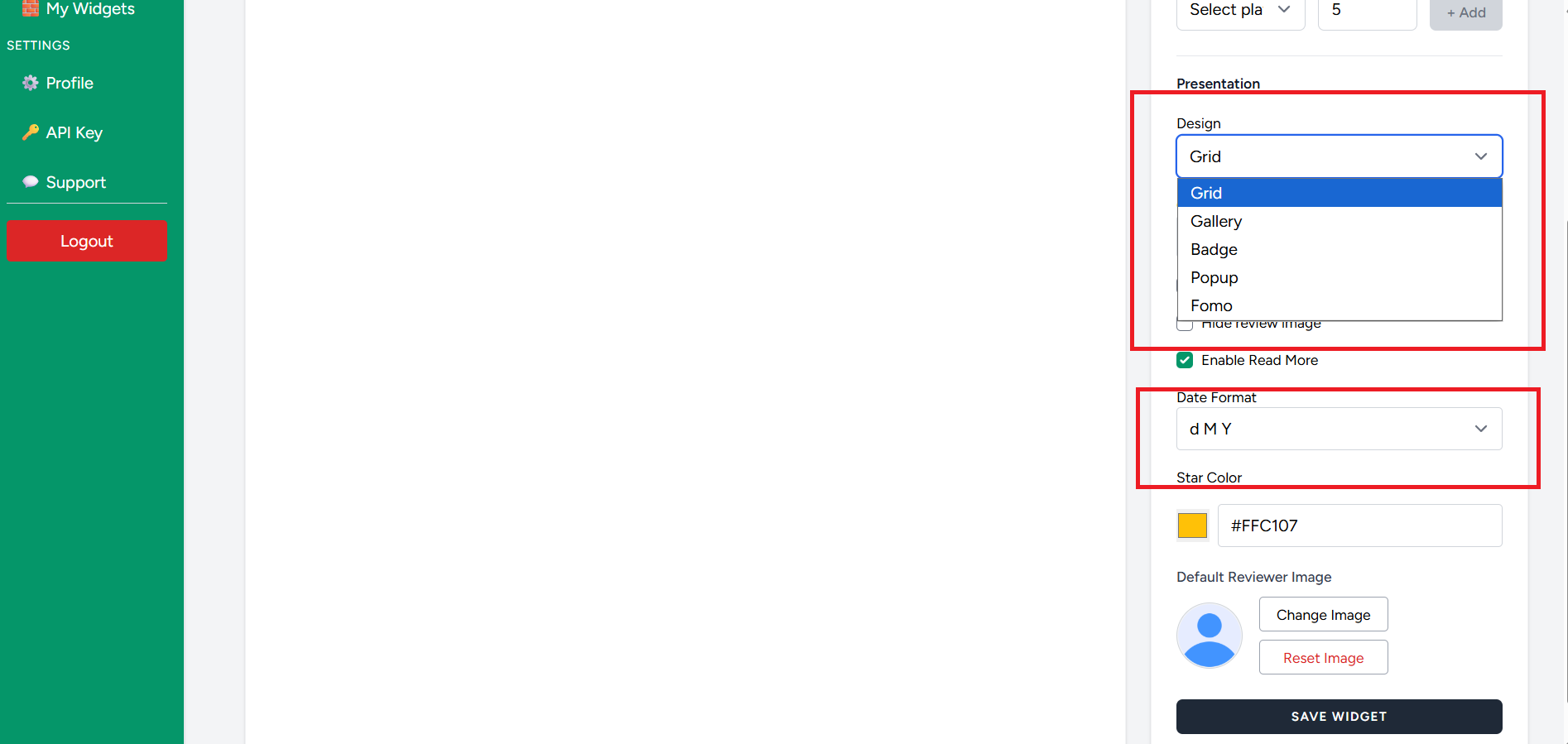
3. You can also choose a design for your reviews. Multiple options are available, such as Grid, Fomo, and more, which provide a perfect representation of reviews on your website.
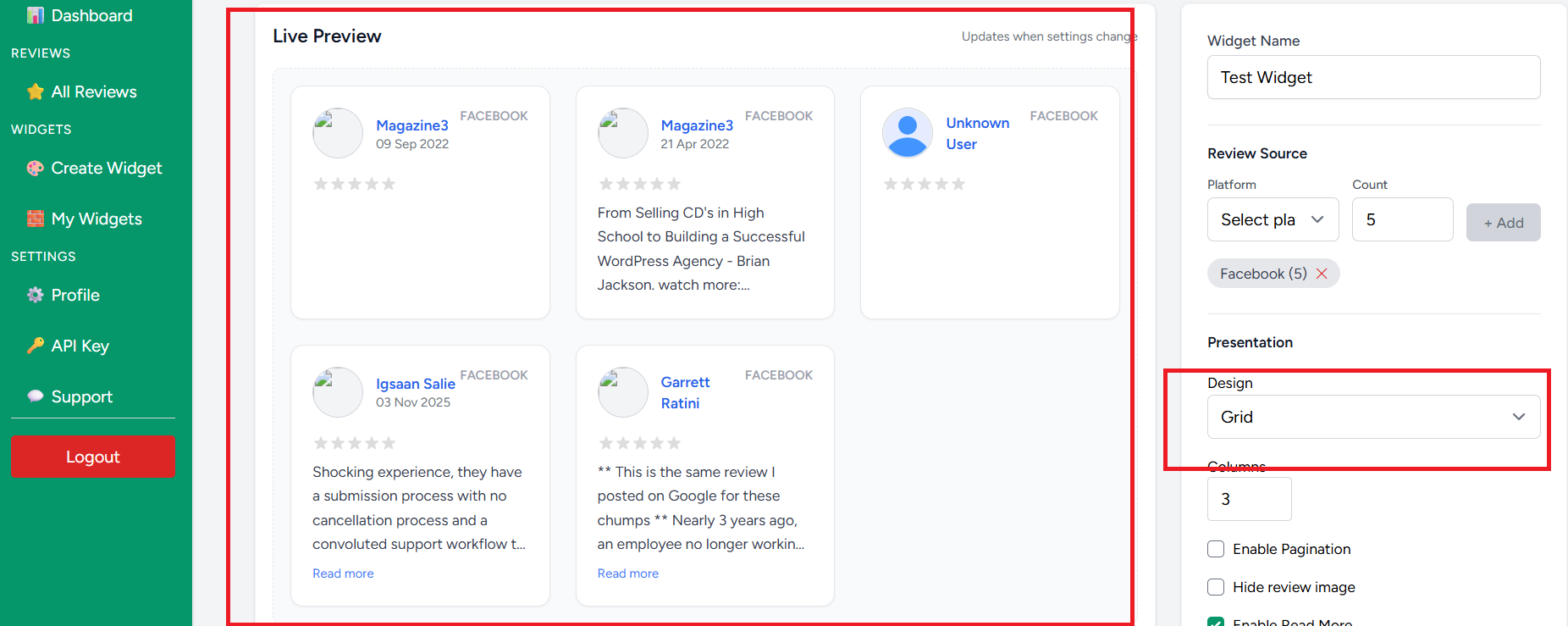
4. You can also check the ‘Live Preview’ on the side, which makes it easy to choose the design that best showcases your reviews on your website.
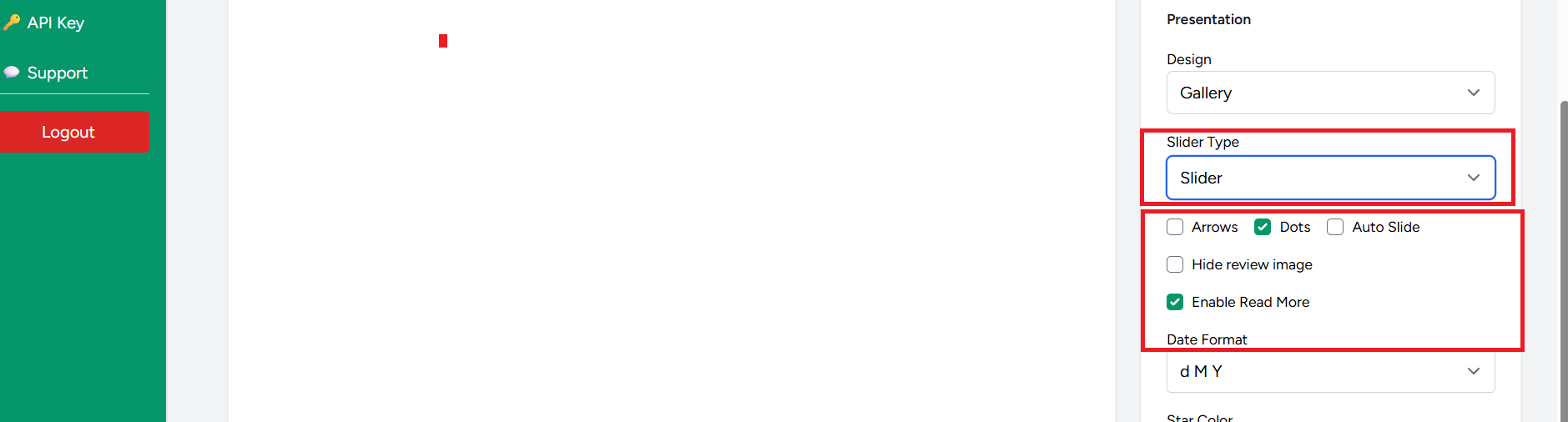
5. You can choose style where you want reviews in “Array” or “Dots” , you can cuztomise using this option. Also you can change the color of your reviews, Once all customizations are done, click on ‘Save Widget.’
6. After saving, you will see the created widget on your dashboard. Simply click on ‘Copy’ and paste it wherever you want—it will work everywhere.
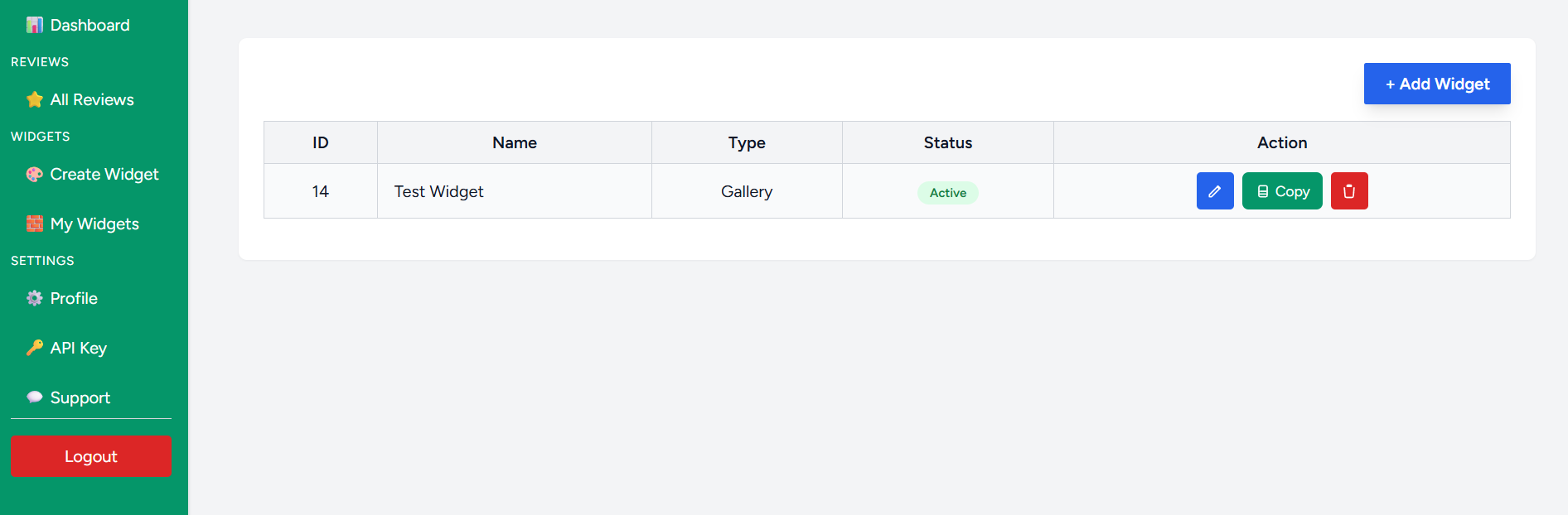
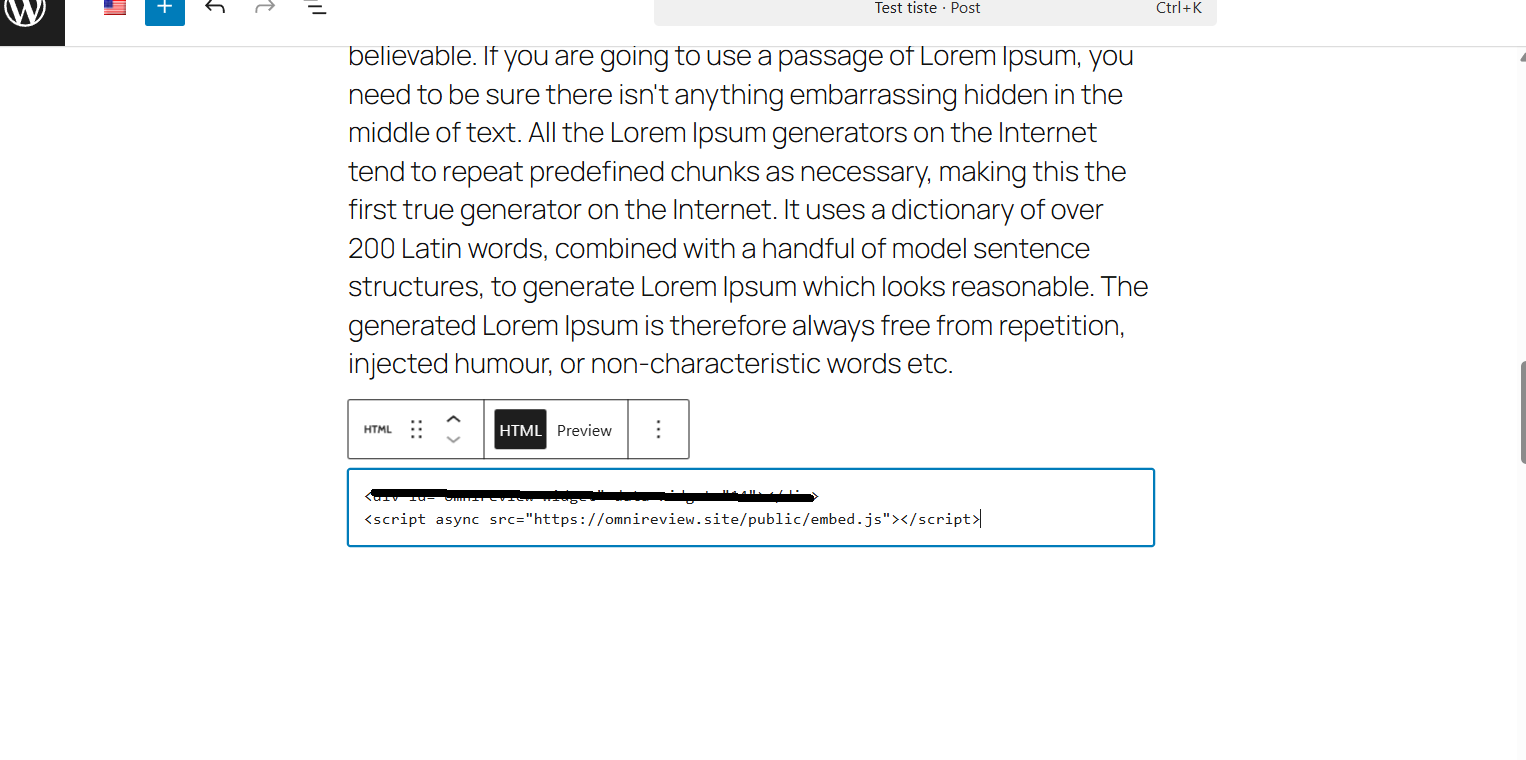
7. Once copied, go to your website’s HTML code and paste it there. In the example below, we are using a WordPress website where the code is pasted into an HTML block. However, this copied code works on any website and with any builder.
OUTPUT
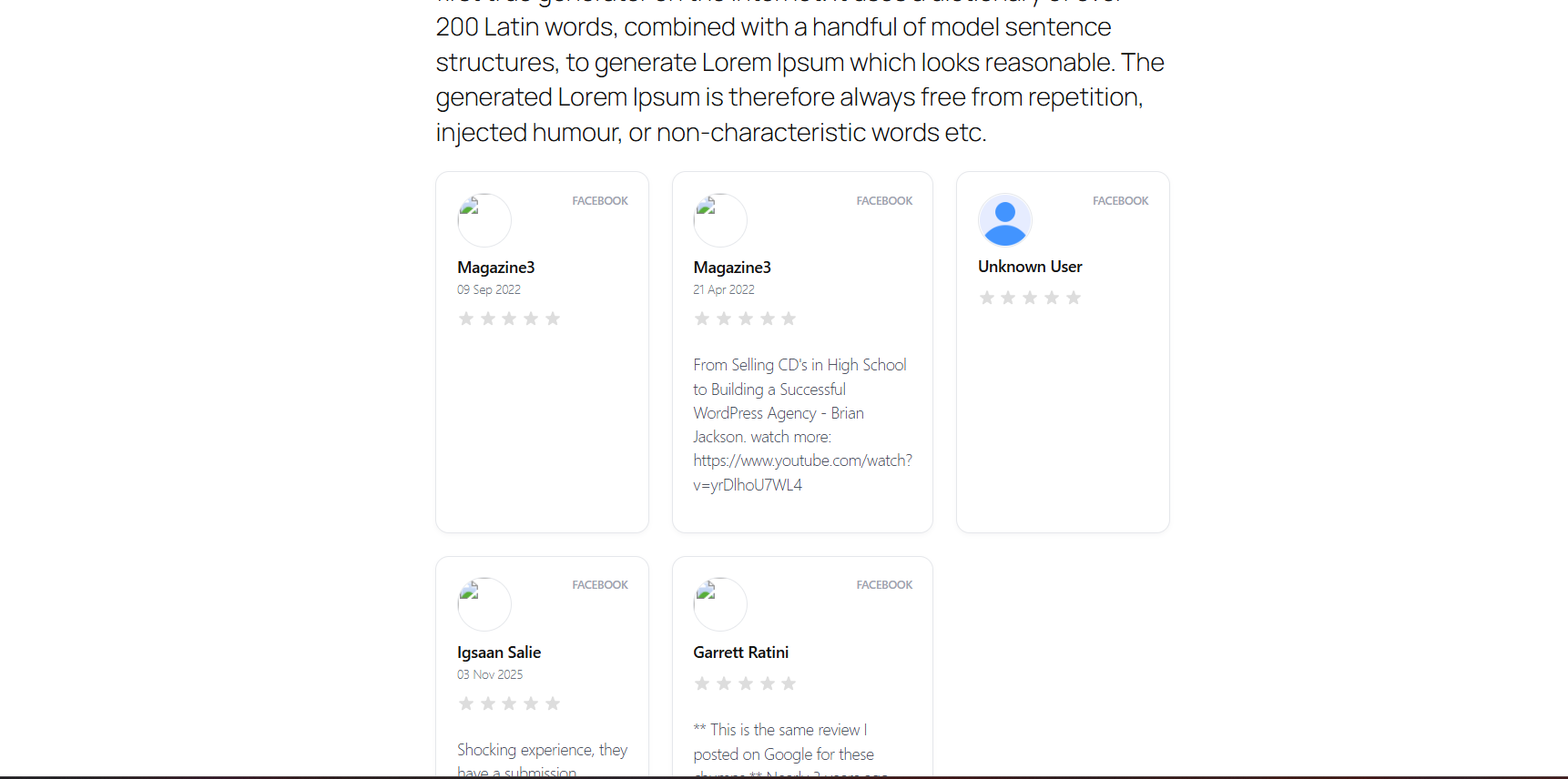
This way you can collect the reviews using Omnireview Tool. That’s it for this tutorial.


