
G2 is one of the most trusted platforms for software and SaaS reviews, where real users share detailed insights about the tools they rely on every day. These verified reviews help potential customers make confident decisions — and showcasing them on your website can significantly boost your credibility and conversions.

With theOmniReview tool, you can effortlessly import authentic G2 reviews directly into your site. No manual copying, no messy formatting — just clean, structured, trustworthy feedback displayed exactly where your audience needs it.
Whether you offer SaaS products, digital services, or run a comparison platform, integrating G2 reviews enhances transparency, improves user trust, and strengthens your brand reputation.
This tutorial will walk you through how to fetch reviews from G2 using OmniReview and display them beautifully across your website.
STEPS:
1. Create an account on Omnireview site and obtain a Token. Kindly follow to this document to know how to create an account on Omniereview and setup the extension.
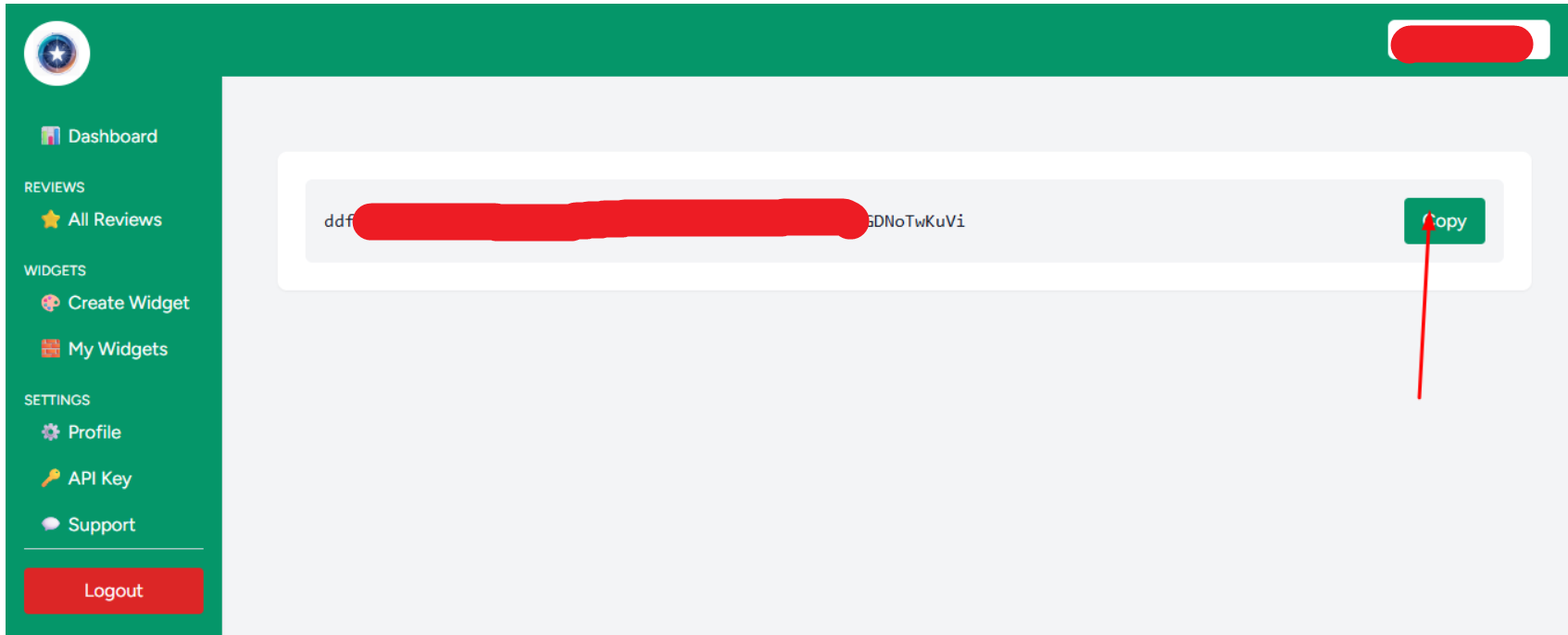
2.Copy the token, then click on the Omnireview extension installed in your browser. Go to your G2 Platform, Search for the organization, navigate to the Reviews section where your client feedback is listed, and click on “Start Collecting Reviews” to begin fetching the reviews.
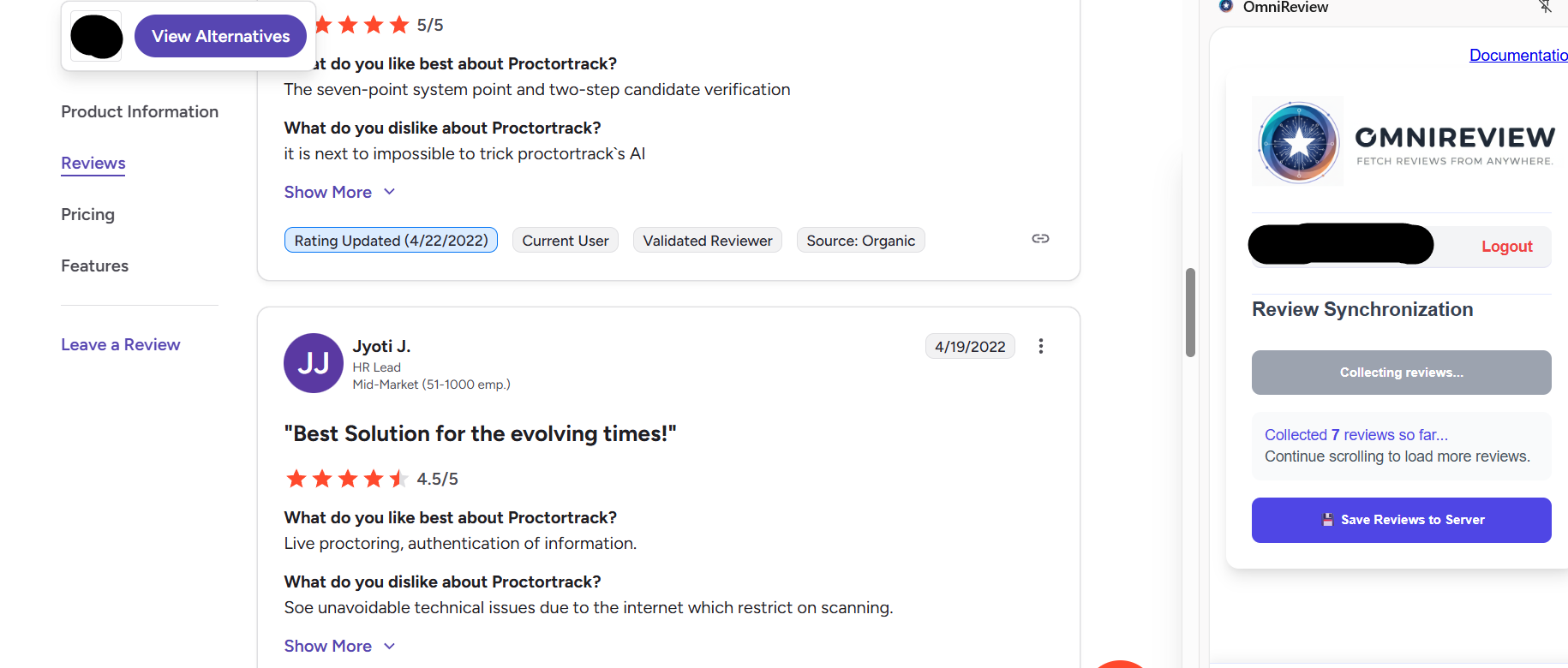
3. Click on save reviews on server and go back to your omnireview dashboard.
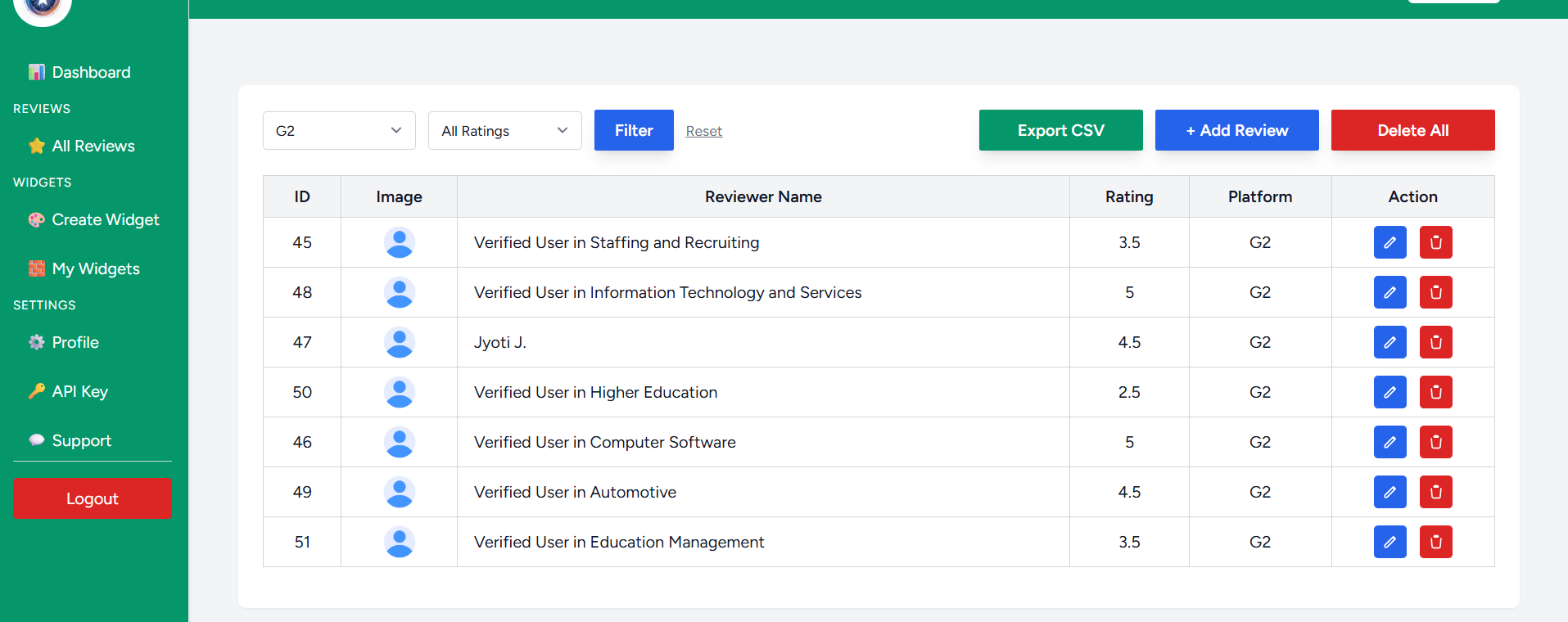
4. On the dashboard, click on “All Reviews” to view the collection of reviews gathered from G2 Platform Reviews using the Omnireview tool.
Create widgets to display reviews on your site anywhere
1. Simply go to your OmniReview account and click on the ‘Create Widget’ option.
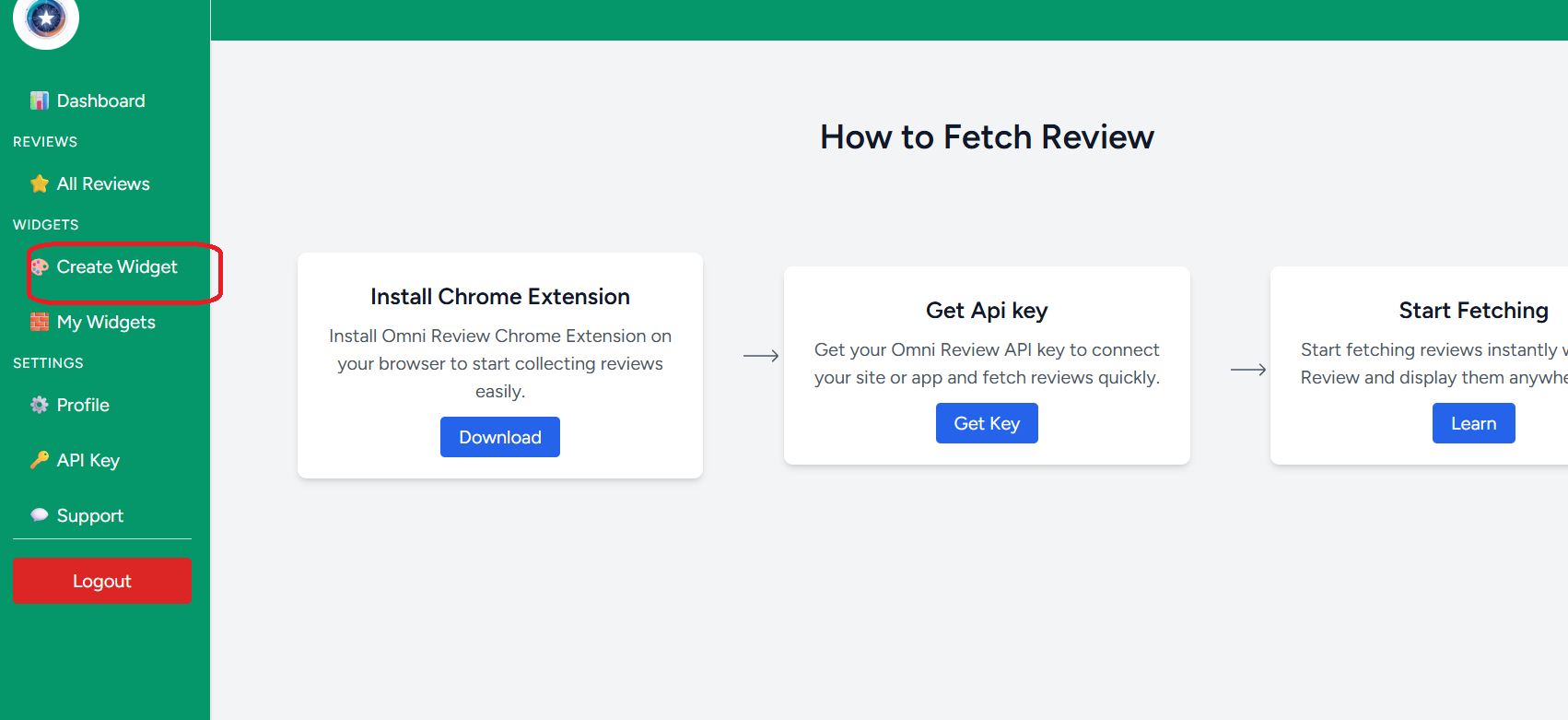
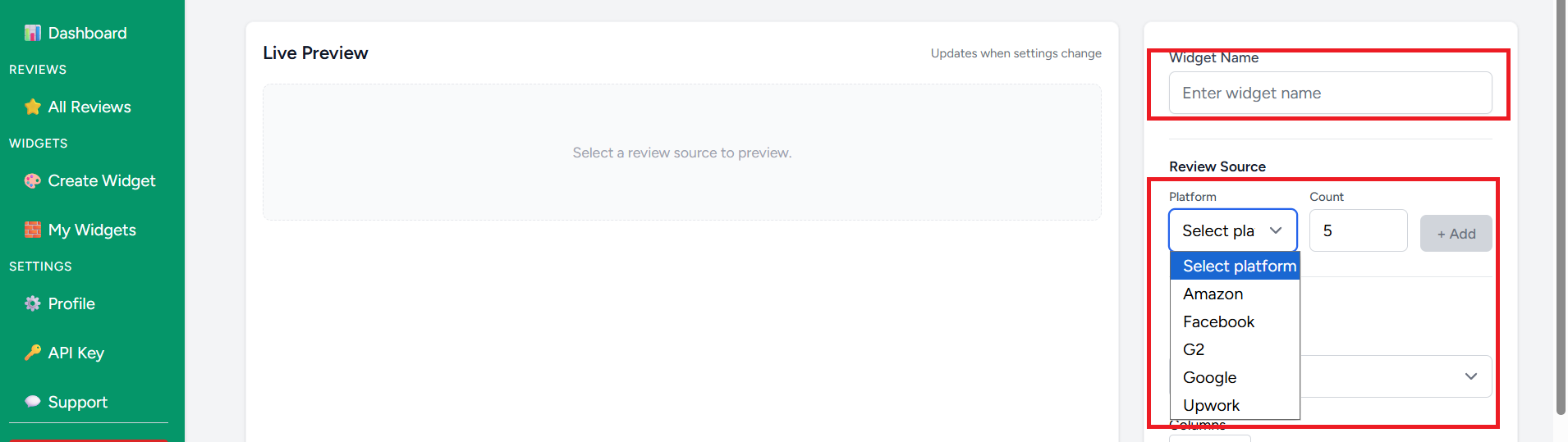
2. On this page, you will see options in the sidebar. Enter the name you want to use and select the review platform.
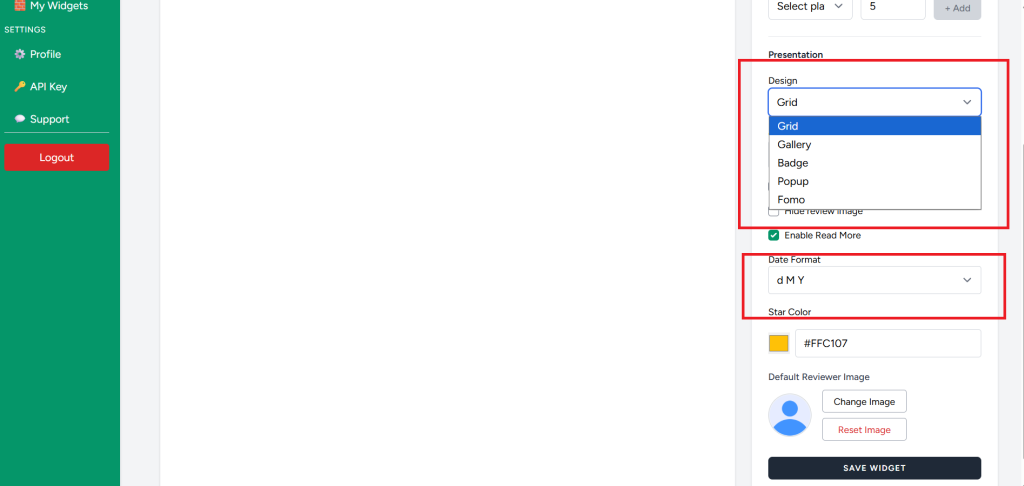
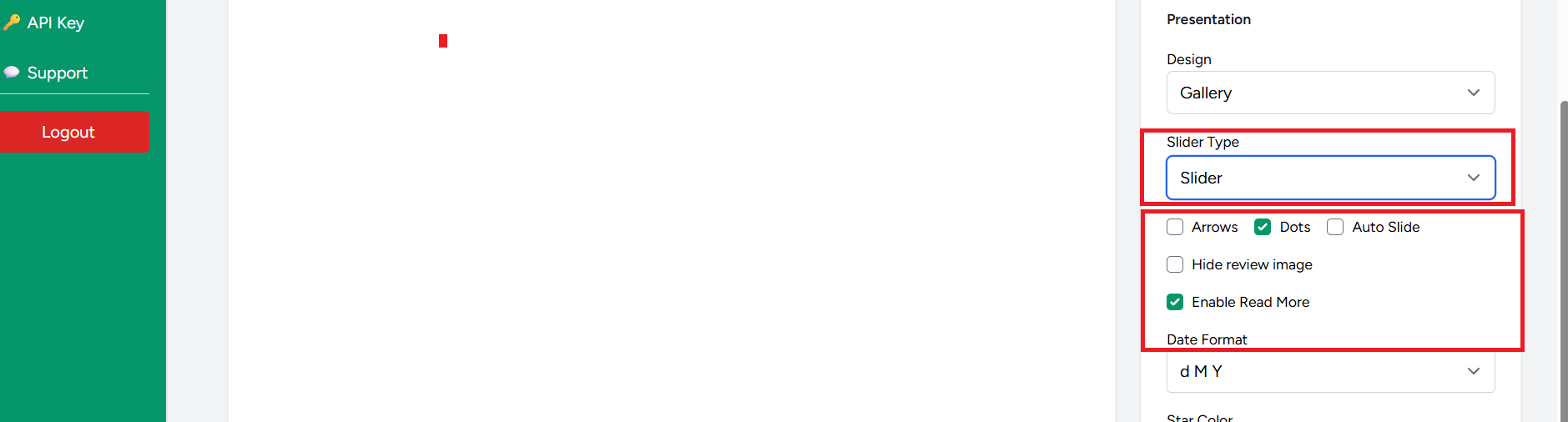
3. You can also choose a design for your reviews. Multiple options are available, such as Grid, Fomo, and more, which provide a perfect representation of reviews on your website.
4. Also You can choose style where you want reviews in “Array” or “Dots” , you can cuztomise using this option.
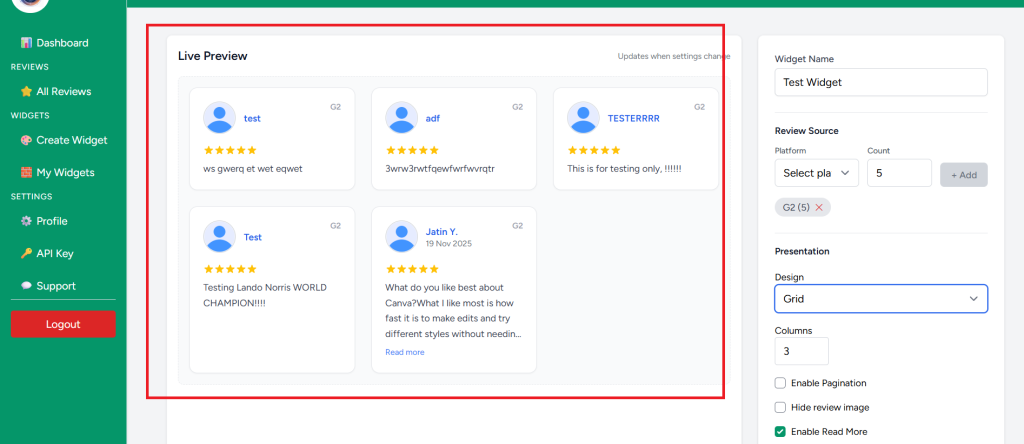
5. You can also check the ‘Live Preview’ on the side, which makes it easy to choose the design that best showcases your reviews on your website.
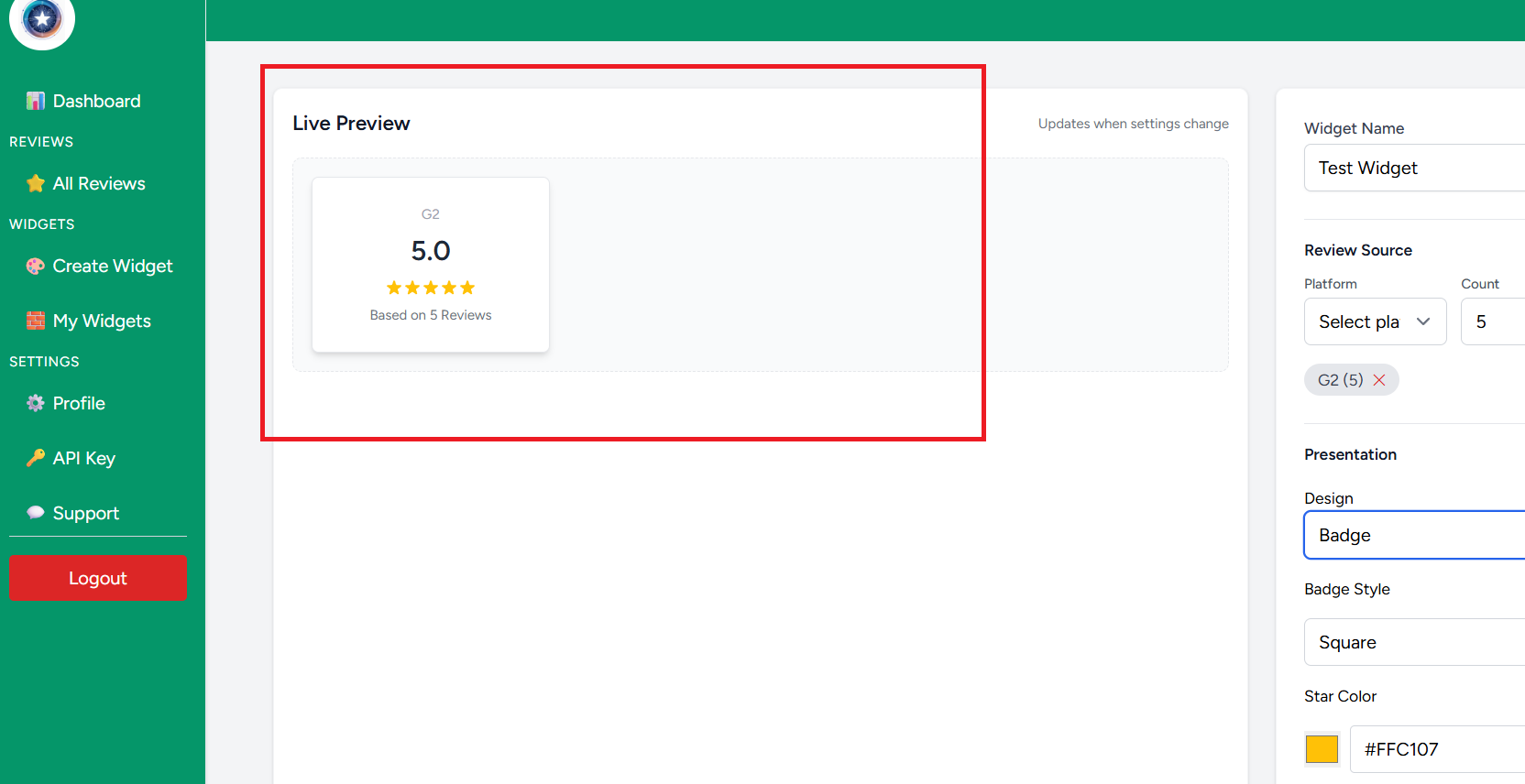
6. You can also change the color of your reviews. Once all customizations are done, click on ‘Save Widget.’
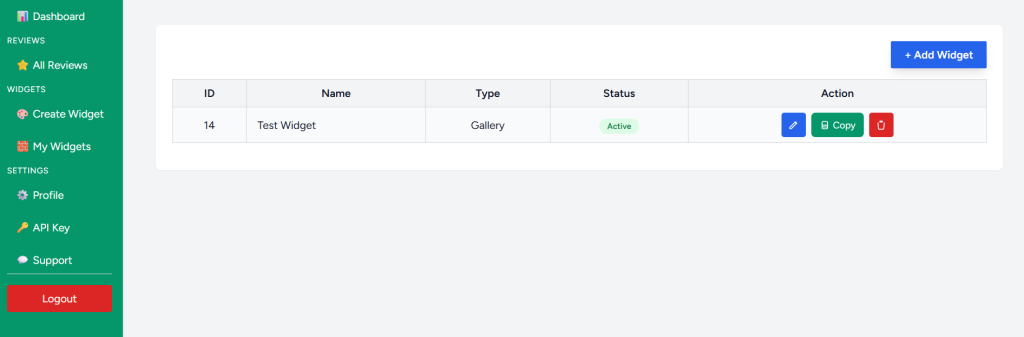
7. After saving, you will see the created widget on your dashboard. Simply click on ‘Copy’ and paste it wherever you want—it will work everywhere.
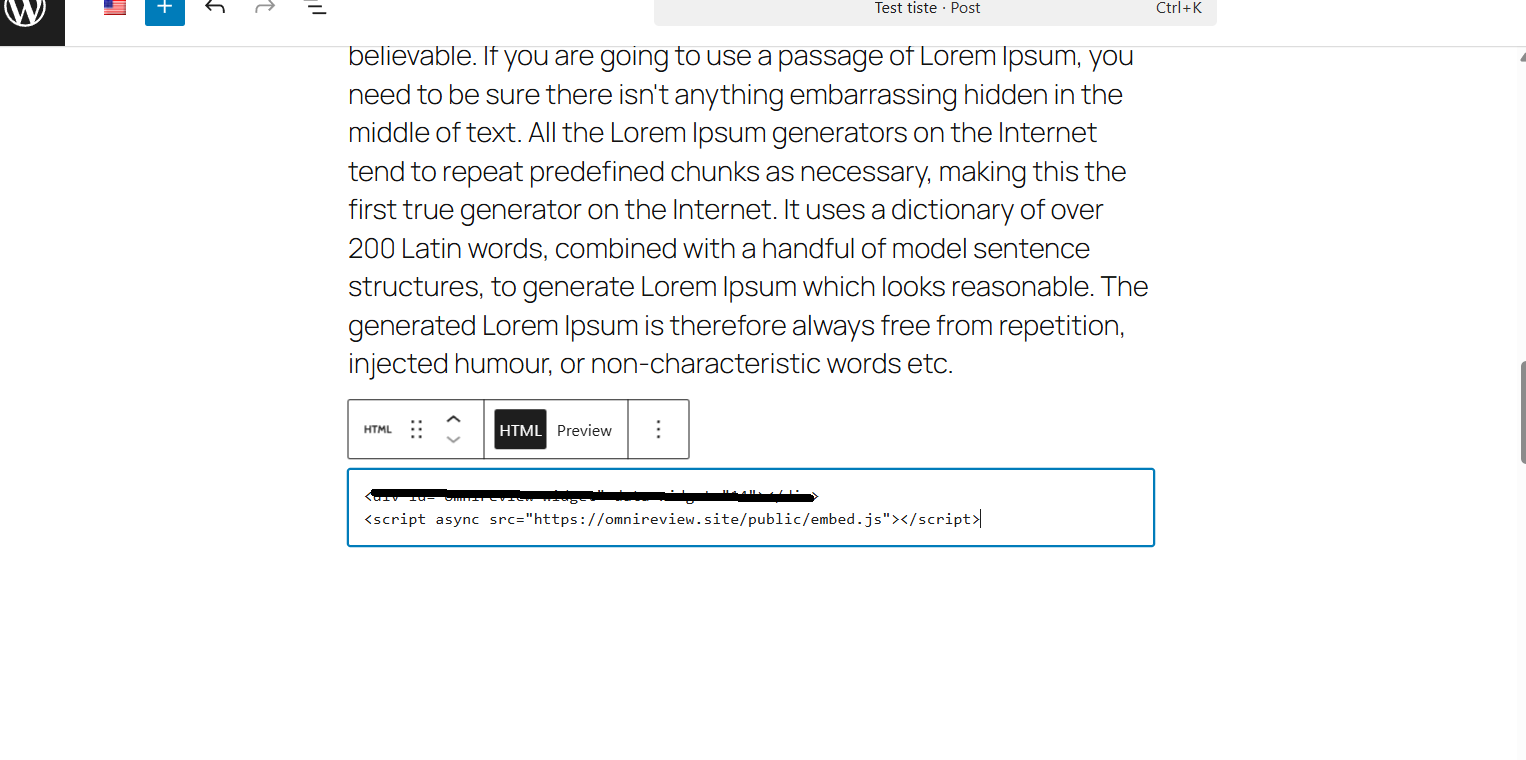
8. Once copied, go to your website’s HTML code and paste it there. In the example below, we are using a WordPress website where the code is pasted into an HTML block. However, this copied code works on any website and with any builder.
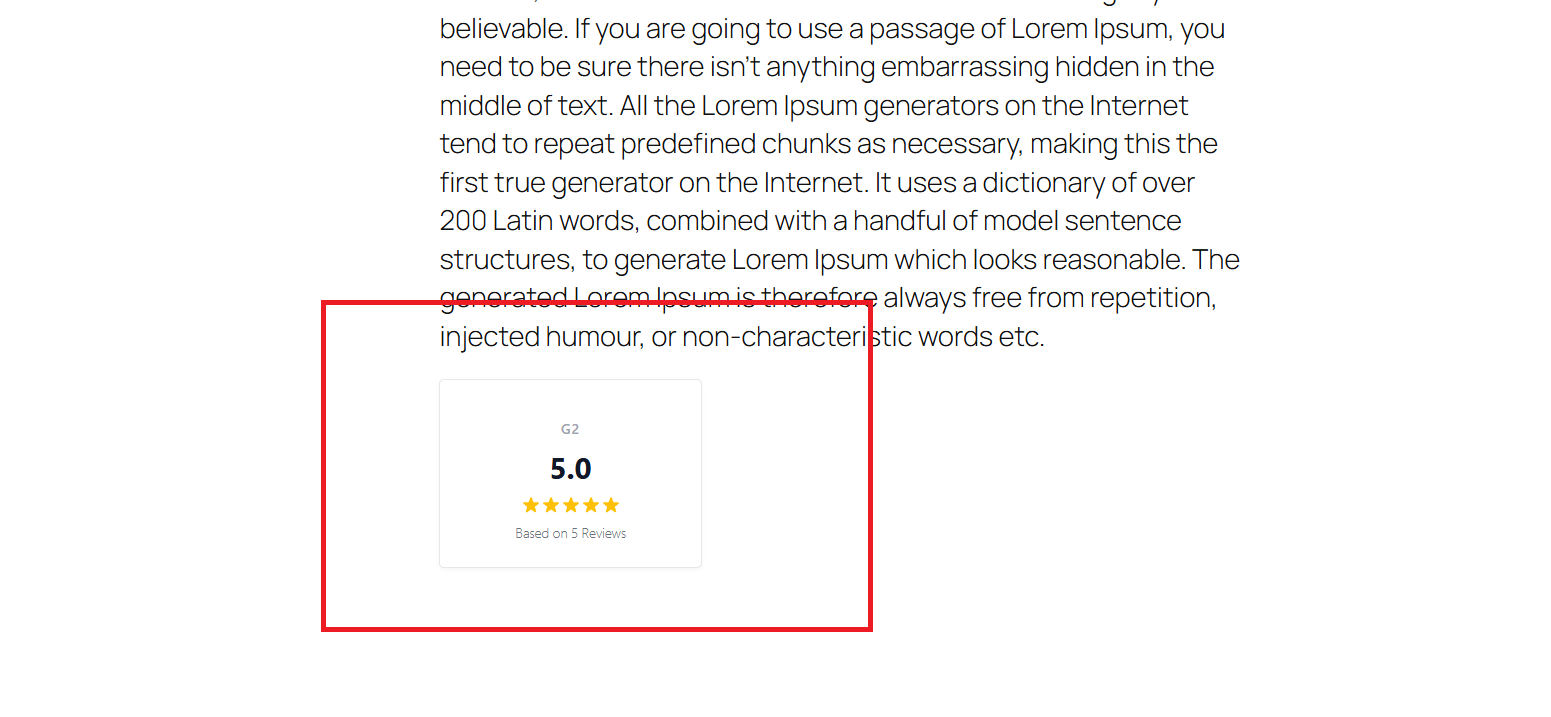
OUTPUT
This way you can collect the reviews using Omnireview Tool. That’s it for this tutorial.


